
Optimal Access · Docs
Kurator Setup
After you install Kurator, follow these steps to register and get started.
Register Kurator
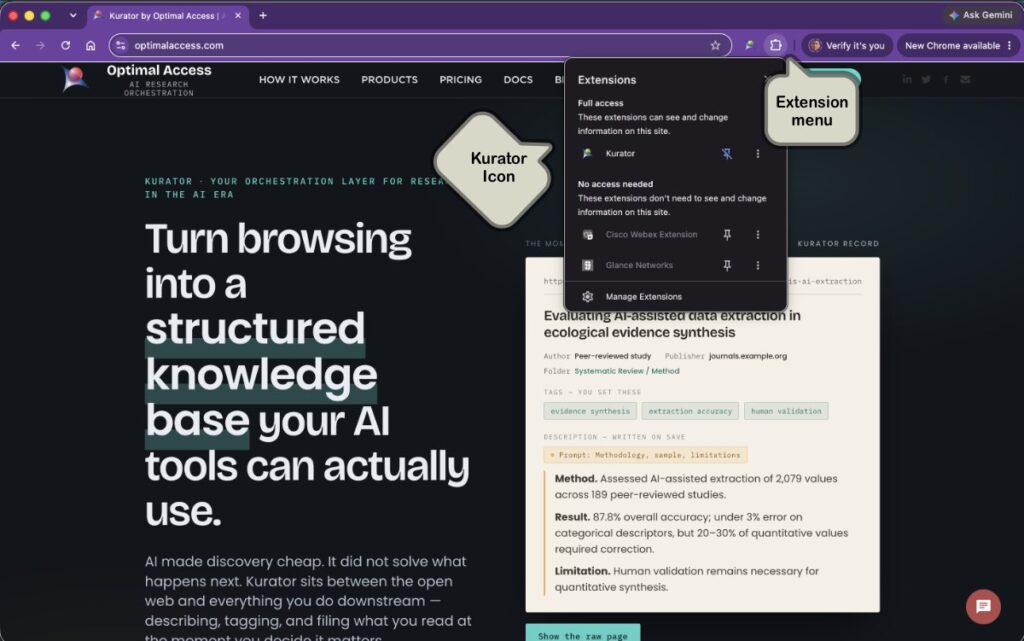
When you install Kurator, the Kurator icon will be added to your extensions menu.
Click on the extensions icon  in your address bar, and pin the Kurator icon to your address bar.
Next, click on the Kurator icon, to launch the Kurator dialog. If you are here for the first time click on the “sign up now” command to register your account.
After you register your account you will receive an email to activate your account.
Click on the link you receive in your email to activate your account.
If you use your google account to register, you will be authenticated automatically.
Accessing Kurator app
After installing Kurator, you can access the Kurator app by clicking one the Kurator icon in the address bar.
Once you click on the icon, the sign-in page will load in a new tab.
You can now bookmark this page, and access it from the bookmark manager menu.
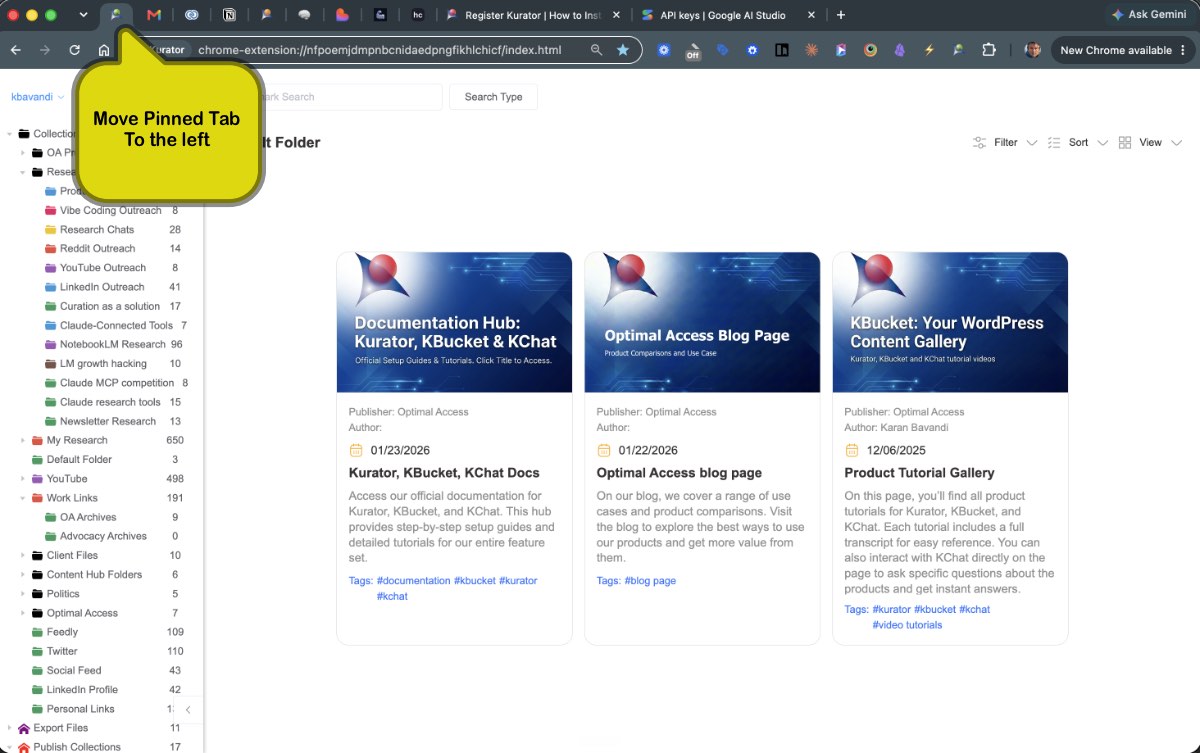
We recommend that you pin this tab in your browser, move it to the left hand side, so its always easily accessible whenever you load your browser.
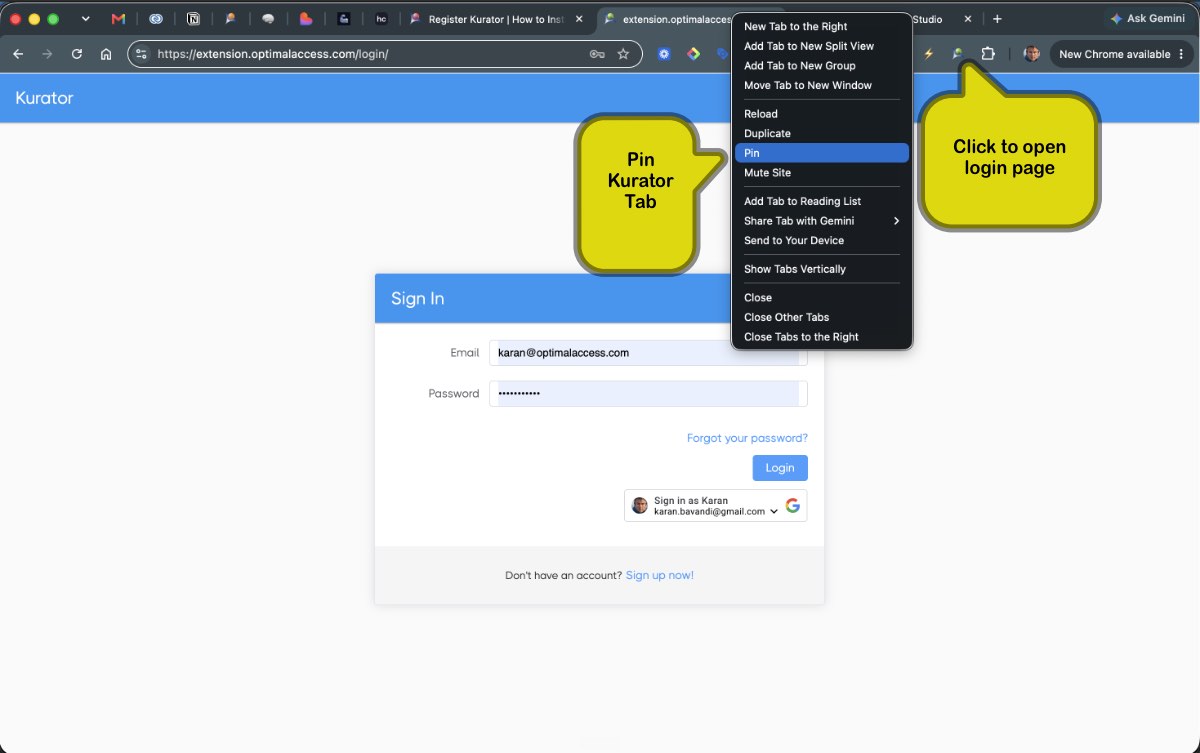
After pinning the Kurator browser tab, move it all the way to the left. This way your index into your information, your 2nd Brain will always be instantly accessible in your browser window.
Activate your LLM's
What sets Kurator apart from all other web clippers is your ability to set up custom prompts and use them to summarize, transcribe, copy and analyze any webpage, youtube video or AI chat.
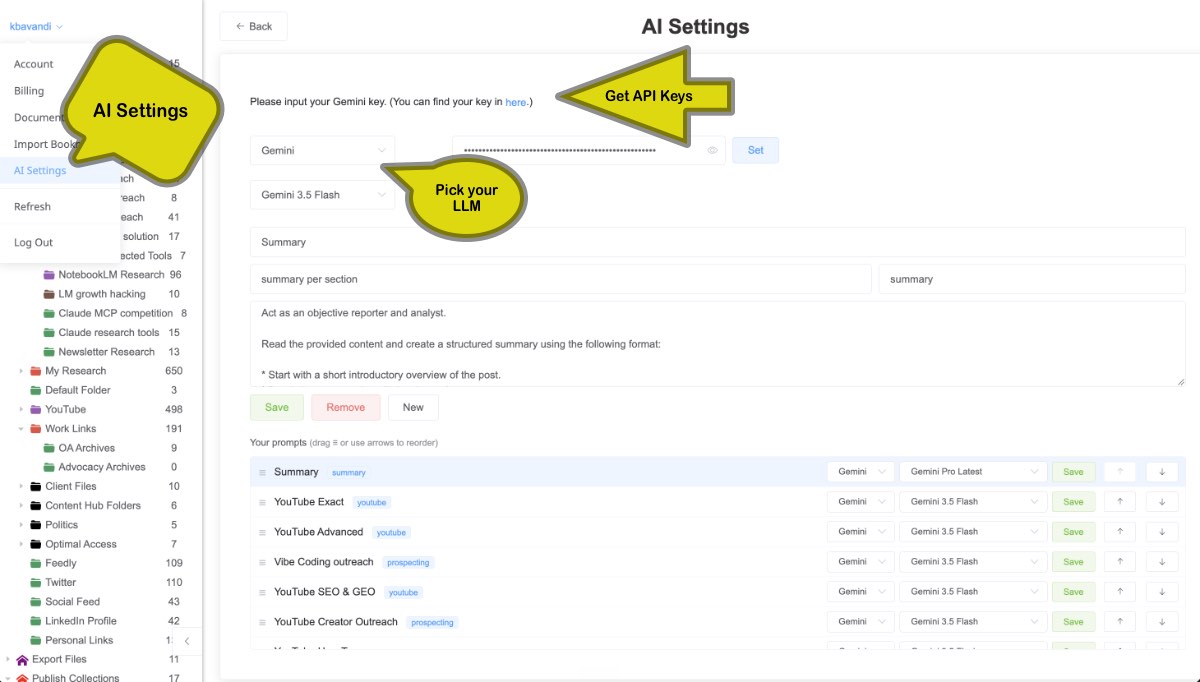
To set up your custom prompts, go to the menu on the top left hand corner of your app with your username, click on the drop down and then click on AI settings.
From here, you can activate both Gemini and openAI.
From the drop down menu pick your LLM, then click on the link above to create and retrieve your API key from the respective sites.
Depending which LLM is selected, you will be led to their API keys page to create your key.
Once you get the key, paste in Kurator and click set to active your account.
Creating and Using your Prompts
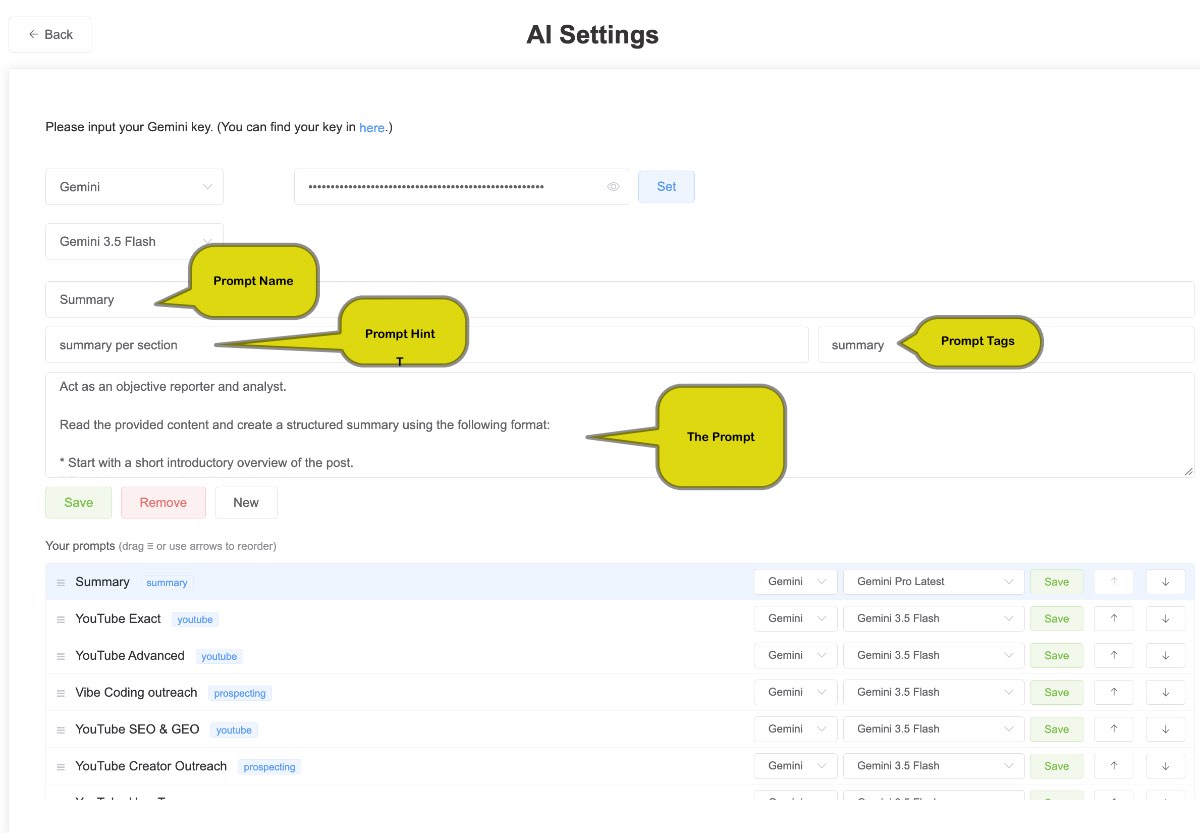
On this AI settings page, you can create, edit, organize, and delete prompts.
AI practitioners often use multiple prompts to save and organize their research.
Kurator makes it easy to manage and access prompts through this interface.
Each prompt includes the following fields and controls:
- Name: Give your prompt a name.
- Hint: Add a detailed reminder of what the prompt does. This hint appears when you hover over the prompt in the popup.
- Tag: Organize your prompts into groups by adding tags.
- The Prompt: Enter your prompt in the main window.
- Save: Save new prompts or changes to existing prompts.
- Remove: Remove a prompt from the list.
- New: Add a prompt.
To modify a prompt, select it from the list, make your changes, and save.
You can also drag the prompts in the list below and organize them the way you want.
Using Your Prompts
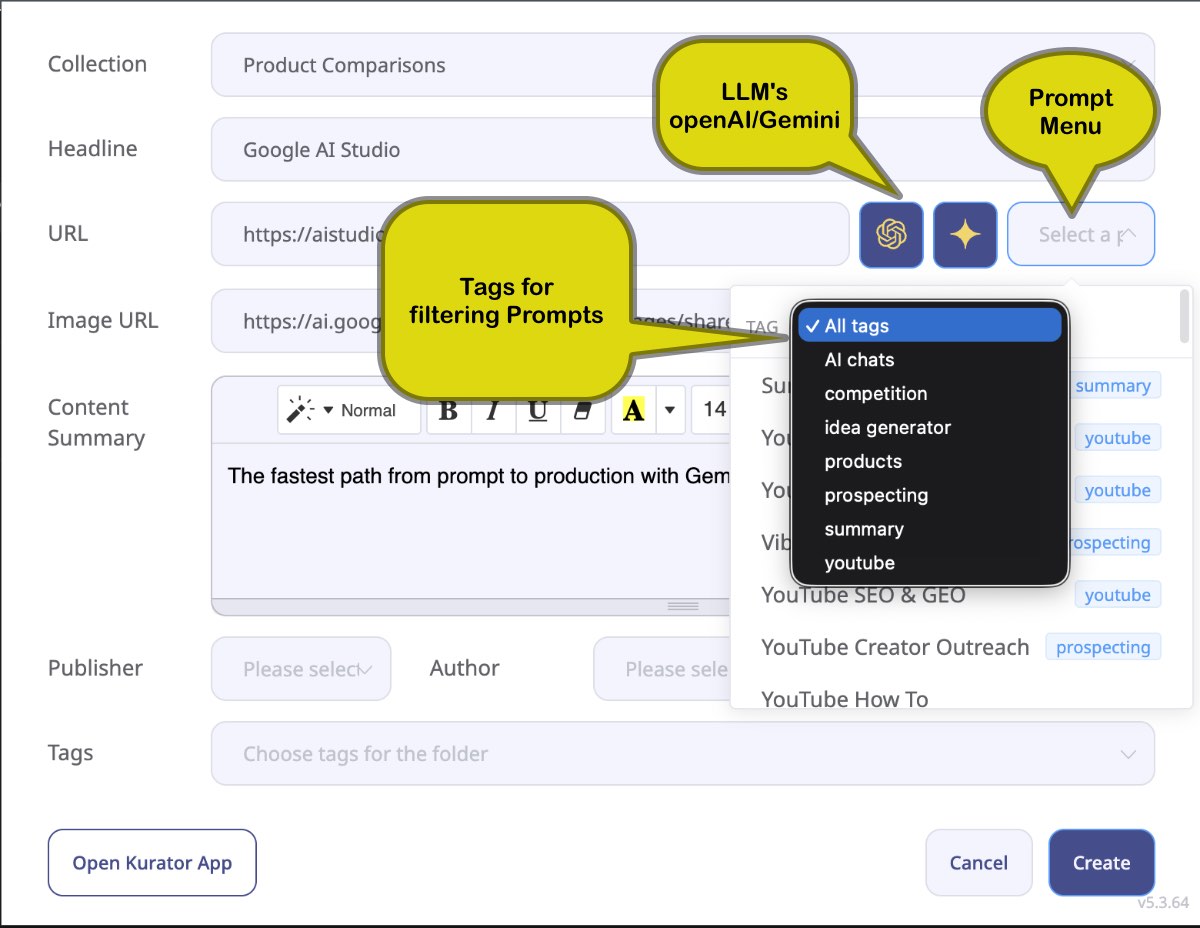
You can now access your prompts through the popup.
Select and run a prompt when you open the popup.
First, choose the appropriate prompt from the dropdown menu.
Use the tag dropdown above the list to filter prompts and find them quickly.
After selecting a prompt, click your LLM icon (Gemini/OpenAI). The prompt will use the content loaded on the page and write the results to your popup's description box.
With Kurator, you can summarize, analyze, and transcribe videos, as well as save chats, Google Docs, and PDFs.
If Claude or ChatGPT is connected through the MCP connector, you can ask it to conduct research, use a custom prompt you've designed here, and save the results to a folder of your choice.
When you use Kurator prompts, the context is limited to the page.
When you ask Claude or OpenAI to use Kurator prompts, the results are influenced by their own memory.
Import chrome Bookmarks
To import your Chrome bookmarks to Kurator, access the accounts menu on the top left-hand side of the app. Then, select "Import Bookmarks" and add your Chrome bookmarks.
Please note that if you are using the Free version, importing your bookmarks will exhaust your ability to test the features, as the limit of the free version is 100 links.
Also, keep in mind that your Chrome bookmarks only save the URL and Title. To add images, descriptions, and tags, you will need to edit your imported bookmarks individually.
Upgrade Kurator
With the free version of Kurator, you can add and import up to 100 links. You can also create KBucket files for our WordPress plugin and add up to 3 sync folders for exporting and embedding links on your website or newsletter.
To unlock Kurator, click on your username in the top-left corner of the Kurator app and select "Accounts".
You can upgrade Kurator to the Standard, Pro, and Agency versions from this location.

Click here to learn more about our pricing