
Optimal Access · Docs
NotebookLM Integration
Google NotebookLM is a powerful AI tool for deep research, but its biggest user frustration is the "flat chaos" caused by the inability to organize or sort sources into folders.
Kurator solves this problem by acting as your master organization layer. By using the Sync to NotebookLM feature, you can maintain your research in beautifully structured Collection Folders and push them directly to NotebookLM with a single click.
Before you start make sure you load and sign in to your NotebookLM in your browser session
Here is how to set up and manage your NotebookLM sync.
Sync a Kurator Collection to NotebookLM
Kurator can push every link in one of your "Published Collections" into a Google NotebookLM notebook as text sources with title, URL, tags, description, and scraped content.
Once a folder is attached to a notebook, you can re-sync any time and Kurator will push only the new and modified links, never duplicating what's already there.
You can also filter what gets synced (push only a subset of the folder's links based on tag, publisher, or author) and filter sources inside NotebookLM itself with dropdowns that Kurator injects right next to NotebookLM's search bar.
To filter links inside of Kurator simply use the Publisher, Author and Content Tags. Only posts visible in the folder will be synced.
This guide walks you through the first sync, what to expect on subsequent ones, and how to use the filtering features.
Before You Start
Three things need to be true:
1. The folder you want to sync is in Published Collections.
Sync is intentionally only exposed on published folders — not on every folder in your library. If you don't see the sync option in step 2 below, the folder isn't published yet. Move it to Published Collections first.
2. You're signed in to NotebookLM in the same browser as Kurator. Use the Google account whose NotebookLM you want the sources to land in.
3. NotebookLM is open in a tab. Kurator drives NotebookLM through that open tab, so leave `notebooklm.google.com` loaded in the background for the duration of the sync. If you close the tab mid-sync, the sync stops.
Step by step Guide to syncing
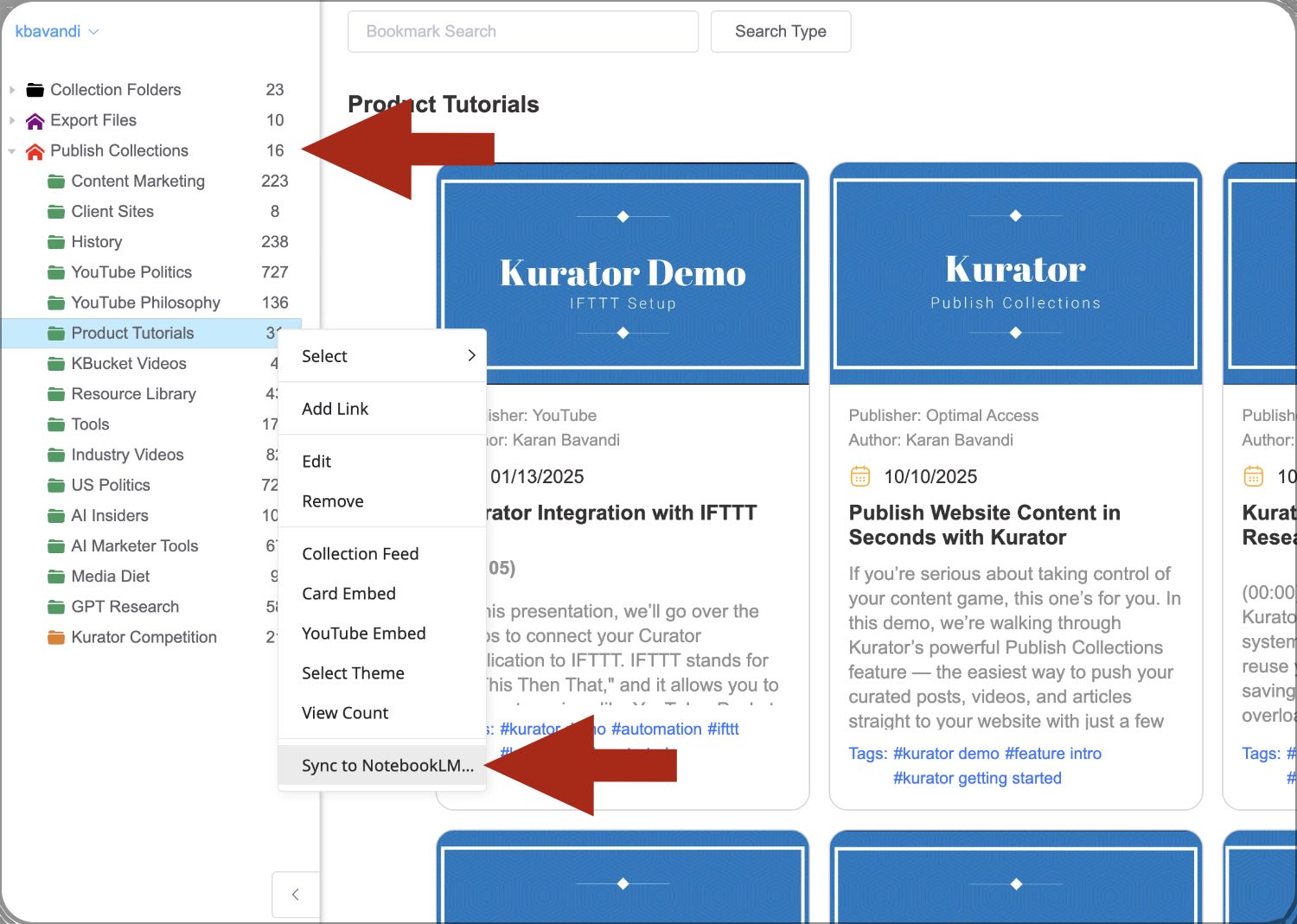
Step 1: Open the folders menu
In Kurator, go to Published Collections and add the folder
you want to sync.
Open its menu in either way:
- Right-click the folder, or
- Click the three-dot icon next to the folder name
Step 2: Initiate the Sync
If the folder is not yet attached to a notebook, the menu shows Sync to
NotebookLM.
Once you click on the command you will get a dialog to name your Notebook.
The name of your folder will show up as the default name for your
notebook.
Step 3: Review the Confirmation Dialog
Kurator will begin securely transferring your enriched links and metadata
to NotebookLM. Once finished, a Confirmation Dialog will appear on your
screen.
This summary will show you exactly:
- The total number of links successfully synced
- Any failed links or errors that require your attention
Step 4 - Conformation
When the sync finishes, Kurator shows a toast with the result:
Added 12, Skipped 0, Replaced 0
The three numbers mean:
| Number | What it Means |
| Added | New links pushed to NotebookLM for the first time |
| Replaced | Links you edited in Kurator since the last sync — the old NotebookLM source was deleted and replaced |
| Skipped | Links already in sync — nothing to do |
Open the NotebookLM notebook to confirm the sources landed.
Each source's title matches the Kurator link's title, and the body is a bullet list with a clickable URL at the top, followed by tags, description, and any scraped content Kurator captured.
The clickable URL makes it easy to jump from a NotebookLM source straight back to the original page.
Re Sync Later
Research is an ongoing process, which is why Kurator's sync is designed to be dynamic. You do not need to start from scratch every time you find a new source.
After your initial sync, you can freely add new links, delete outdated ones, or edit existing metadata within your Kurator Collection Folder.
When you are ready to push those changes, simply select "Sync to NotebookLM" from the context menu again.
Kurator will perform a smart sync—it will instantly recognize your modifications and only update the changed links.
This ensures your NotebookLM project stays perfectly up to date without creating duplicate entries or requiring long, repetitive uploads.
Managing Your Sync Connection
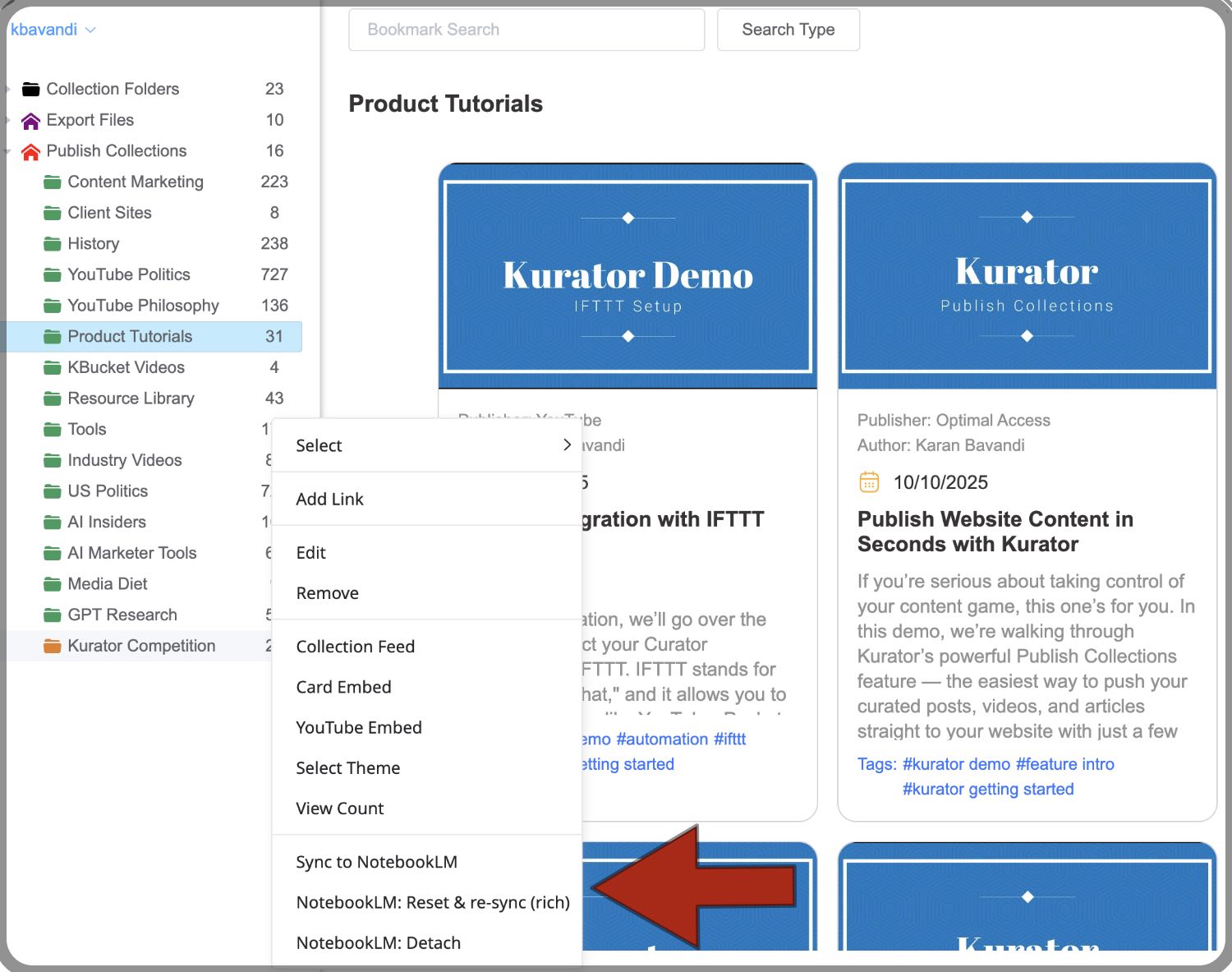
Once you have successfully synced your collection to NotebookLM, opening the context menu for that folder will reveal two additional management items:
- NotebookLM reset and re-sync: Selecting this option will completely delete everything that was previously synced and perform a fresh, comprehensive update from your Kurator collection.
- Detach NotebookLM: Selecting this option will disconnect the current Kurator folder from your NotebookLM project, preventing further syncing.
Sync only Some of the Link
If your folder has a lot of links but you only want to push a subset, set a filter in Kurator's Card view before clicking Sync. Kurator respects the filter and only pushes the matching links.
How
- Open the folder in Card view
- Filter by tag, publisher, or author using the controls at the top of the view
- Confirm the visible cards are the subset you want
- Click Sync
The toast result now includes a filter line and a filtered out count:
filter: tags=ai-agentsAdded 8, replaced 0, skipped 0, filtered out: 29
| Number | What it means |
| filter | The filter that was active in Card view when you clicked Sync (omitted if no filter is set) |
| filtered out | Links the filter excluded — they were not considered for sync |
| Added/Replaced/Skipped | Same meaning as before, but applied only to the filtered subset |
What this is good for
- Splitting one large research folder into multiple smaller notebooks by topic — set a tag filter, sync to notebook A, change the filter, sync to notebook B
- Pushing only freshly tagged content without re-syncing the whole folder
- Working with curated subsets without physically moving links between folders
"Filtered out" vs "Skipped" — they're different
Filtered out means the filter excluded the link before sync even considered it. Skipped means sync considered the link and decided it's already up-to-date.
If you see a large "filtered out" number, the filter is doing its job. If you see a large "skipped" number, that's normal on re-syncs.
Filter sources inside NotebookLM
Once a folder is synced and you're working inside the NotebookLM notebook, Kurator injects three dropdowns just below NotebookLM's source-list search bar:
- Content tag — single-select dropdown of all tags from this folder's links
- Publisher — single-select dropdown of all publishers
- Author — single-select dropdown of all authors
Pick a value in any of the three and NotebookLM's source list hides the rows that don't match. Pick values in multiple dropdowns and the source must match all of them (logical AND). Reset a dropdown to (all) to clear that filter.
Why this matters
NotebookLM's own search bar searches inside source content (full-text). Kurator's dropdowns filter on metadata — the tags, publishers, and authors you curated in Kurator.
Use them together: narrow to "Publisher: TechCrunch" with a Kurator dropdown, then search "agentic" inside NotebookLM's search bar.
Behaviour notes
- The dropdowns appear only in NotebookLM's list view. Click a single source to open it and they disappear. Click back to the list and they reappear.
- Selections are session-only. Reloading the page or switching notebooks resets them to (all).
- The dropdowns survive Angular re-renders, virtual scrolling, and SPA navigation between notebooks. You shouldn't see them flicker or disappear unexpectedly.
- Filter selections inside NotebookLM do NOT affect Kurator's Card view (or vice versa) — they're independent.
- The dropdowns read tag/publisher/author data from Kurator's local cache. If you sign out of Kurator, the dropdowns show no options until you sign back in.
Re-attaching a folder to a fresh notebook
If you want to start over with a folder — sync it to a different notebook from scratch — the clean path is:
- Detach the folder from its current notebook (use the Detach link in the folder's sync panel)
- Delete the old notebook in NotebookLM if you don't want the previous sources hanging around
- Re-attach to a new notebook (Sync to NotebookLM → Create new notebook…)
- Sync — Kurator treats every link as new
Detaching also clears Kurator's internal sync state for every link in the folder, so the re-sync in step 4 isn't confused by leftover references to the old notebook.
Troubleshooting
"I don't see Sync to NotebookLM in the menu"
The folder isn't in Published Collections. Sync is only available for published folders. Move the folder under Published Collections and try again.
"Nothing happened when I clicked Sync"
NotebookLM isn't open in a tab, or you got signed out. Open notebooklm.google.com in the same browser, confirm you can see your notebooks, then click Sync again.
"The sync stopped partway with a rate-limit message"
NotebookLM enforces a hidden rate limit on adding new sources. If you push a lot of links in a short window, Google may temporarily block further additions on your account. When this happens, Kurator stops the sync cleanly, shows a rate-limit notice, and tells you how many links it didn't process.
What to do:
- Wait before retrying. The block usually clears within a day, but it can last longer on accounts that have been hit repeatedly. No fixed time we can promise.
- When you retry, Kurator picks up where it left off. Already-synced links stay marked as synced; you won't get duplicates.
- For very large folders, Kurator paces itself (roughly one source per second) to stay under the limit. A 200-link folder takes a few minutes.
"Sync says the notebook can't be found"
Kurator now checks the notebook still exists in NotebookLM before syncing. If it's been deleted (by you, by another device, or by Google), Kurator stops the sync immediately instead of failing partway through.
Detach the missing notebook from the folder's sync panel, then attach to a different notebook (existing or newly created). The detach clears the stale reference cleanly.
"I attached the wrong notebook"
Use the Detach link in the folder's sync panel. Detaching removes the attachment and also clears Kurator's per-link sync state for that folder, so you can re-attach cleanly.
Detach does not delete the sources already in NotebookLM. If you want those gone, delete them inside NotebookLM directly.
"Sync said 'filtered out: 35' but I wanted those synced"
A filter is active in Kurator's Card view. Open the folder in Card view, clear any tag/publisher/author chips, then click Sync again. See "Sync only some of the links" above.
"The filter dropdowns inside NotebookLM are empty"
The dropdowns read from Kurator's local cache. If you've signed out of Kurator since you last opened the extension, the cache is empty. Open the Kurator extension or the Kurator app, sign in, then return to NotebookLM — the dropdowns repopulate.
If you're using NotebookLM on a different computer than where Kurator is installed, the dropdowns won't show data. The cache is local to each browser profile.
Why use Kurator for NotebookLM
By managing your links in Kurator first, you bypass the organizational limitations of NotebookLM. You maintain a clean, highly structured master library in your browser, and only sync the specific, vetted sources you want your AI to synthesize.
FAQ
No. Sync is one-way only: Kurator → NotebookLM. Editing a source inside NotebookLM won't change the Kurator link. Edit links in Kurator and re-sync.