Optimal Access · Docs
Kurator Workspaces
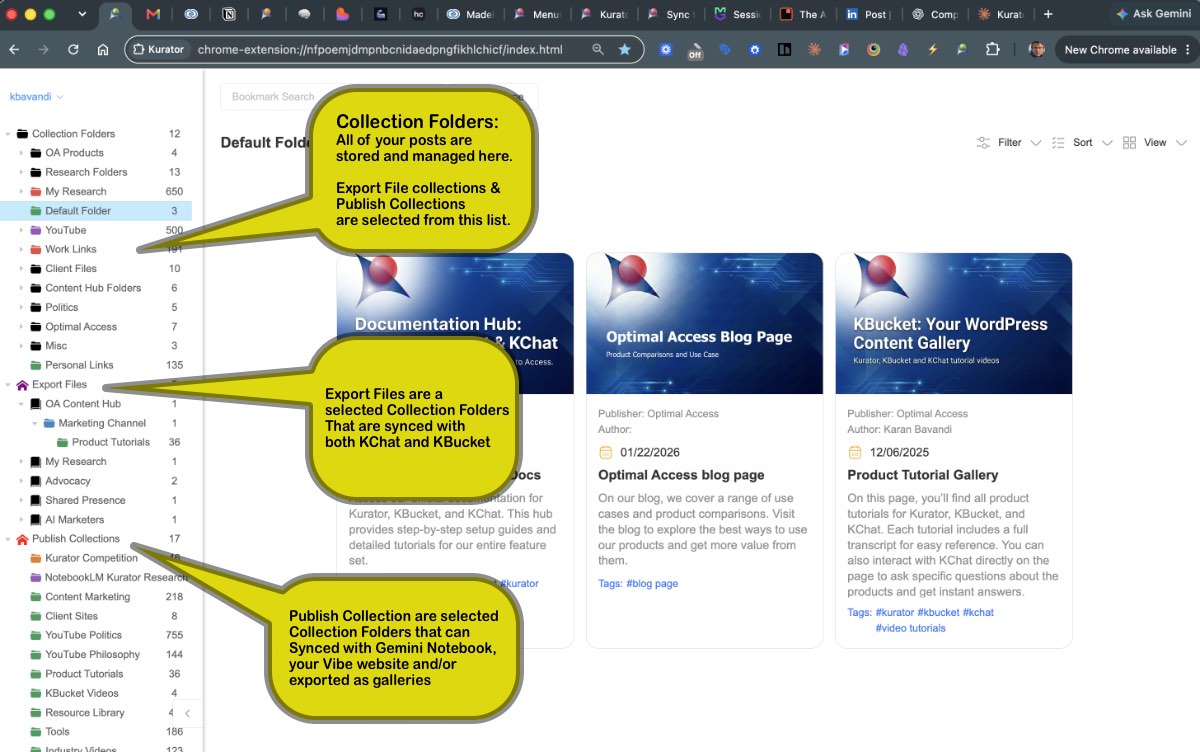
The Kurator app has three sections:
- Collection folders: add, manage and organize all of your posts.
- Export files: combine multiple collection folders into one export, then sync it to your KChat chatbot as its knowledge base, or to the KBucket WordPress plugin to display your posts as galleries, carousels or grids on any page of your site.
- Publish collections: turn a single folder into a Gemini notebook, or sync its contents with a website you've built on a vibe-coding platform like Lovable.
Collection Folders
Collection folders are where you organize and manage everything you save in Kurator. This section holds two types of items:
- Collection folders store your posts. Each saved page lives in a folder.
- Collection groups organize your folders. Use them to group related folders, such as all your client research or all your prospecting lists.
Three ways to create a collection folder:
- From the Collection folder menu in the app.
- From the Collection dropdown in the popup, when you're saving a page and want a new folder for it.
- By importing, since imported folders are added to your collections automatically.
Working with Collection Folders
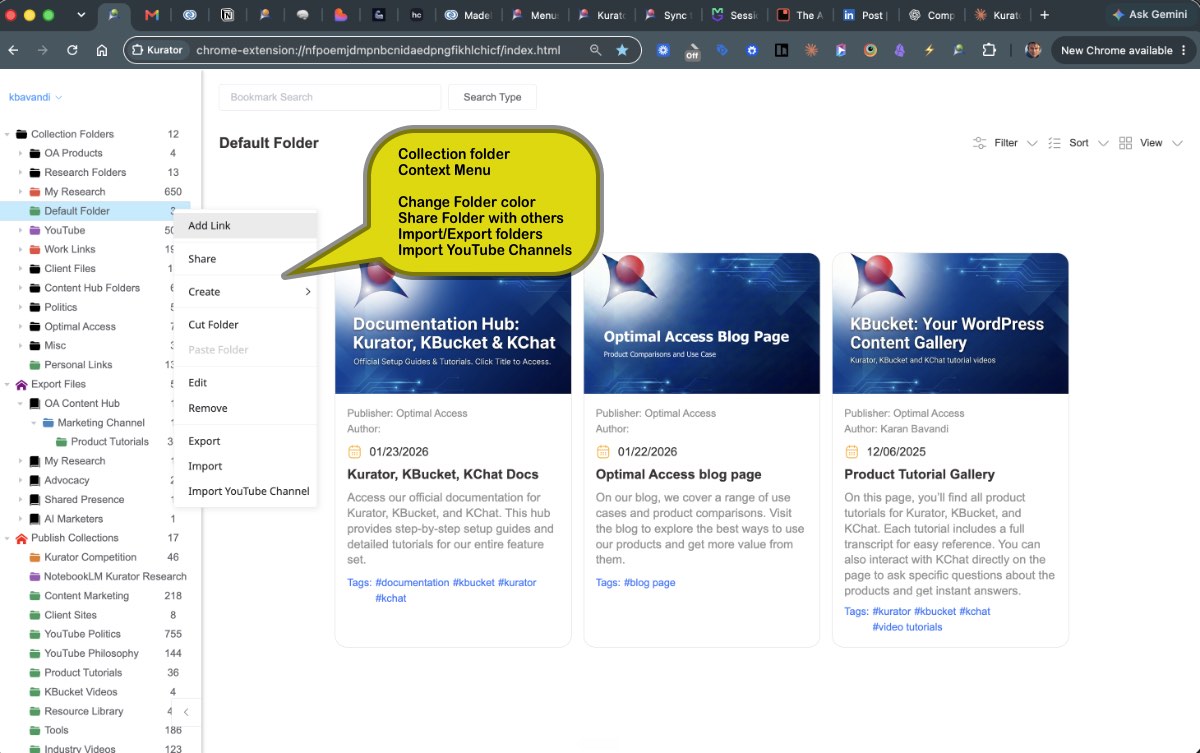
Collection folders are flexible workspaces for storing and managing your posts. Open a folder's context menu to:
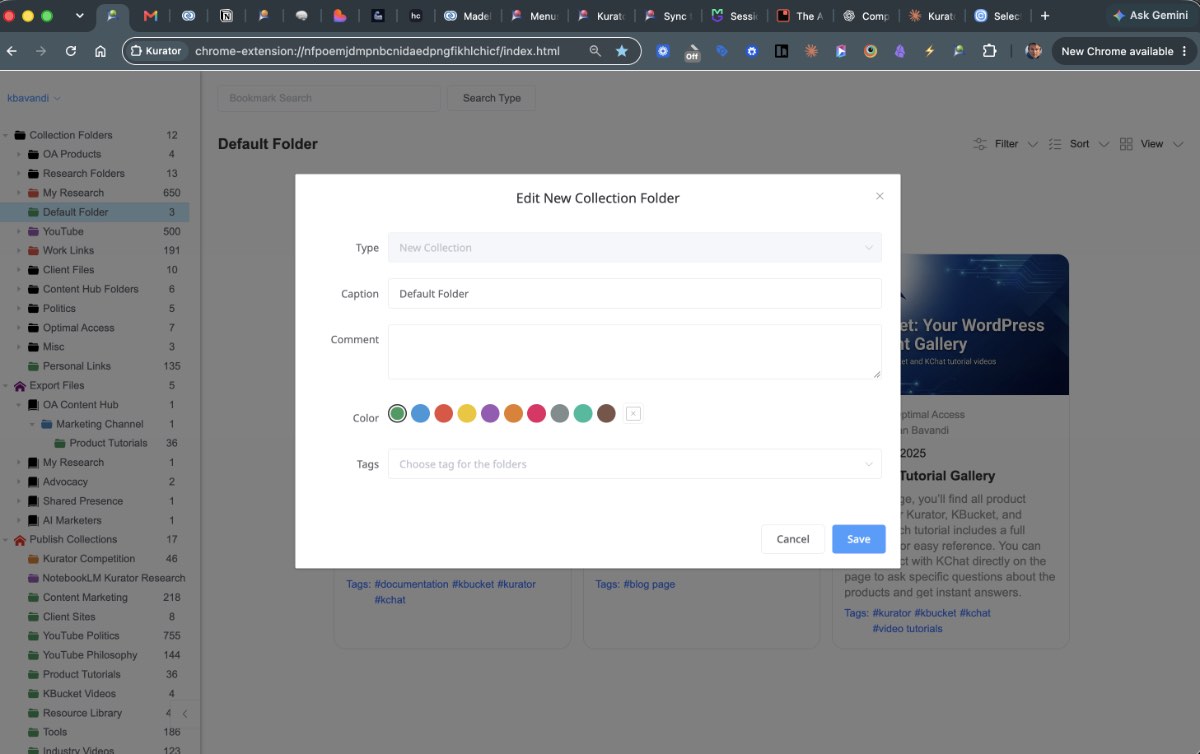
- Color-code it, so you can spot folders at a glance.
- Share it with other Kurator users by adding their email addresses.
- Import or export it. For example, export a folder to your computer, then upload the file to Claude, ChatGPT or Gemini to analyze everything in it at once.
- Import a YouTube channel. Pull an entire channel's videos into the folder in one step, instead of saving them one by one.
Folder Views
You can manage two view types in the List View window using the View Tab at the top left of your Kurator screen.
List View
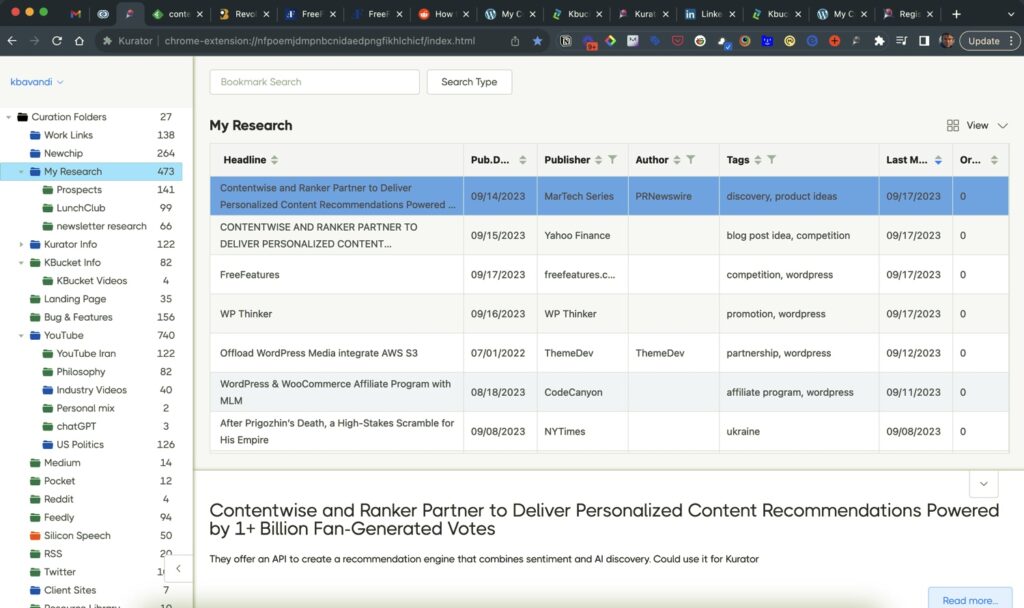
List view consists of two windows, list and preview.
The List view is organized by columns. You can sort your posts by headline, date, publisher, author, content tags, and last modified.
Card View
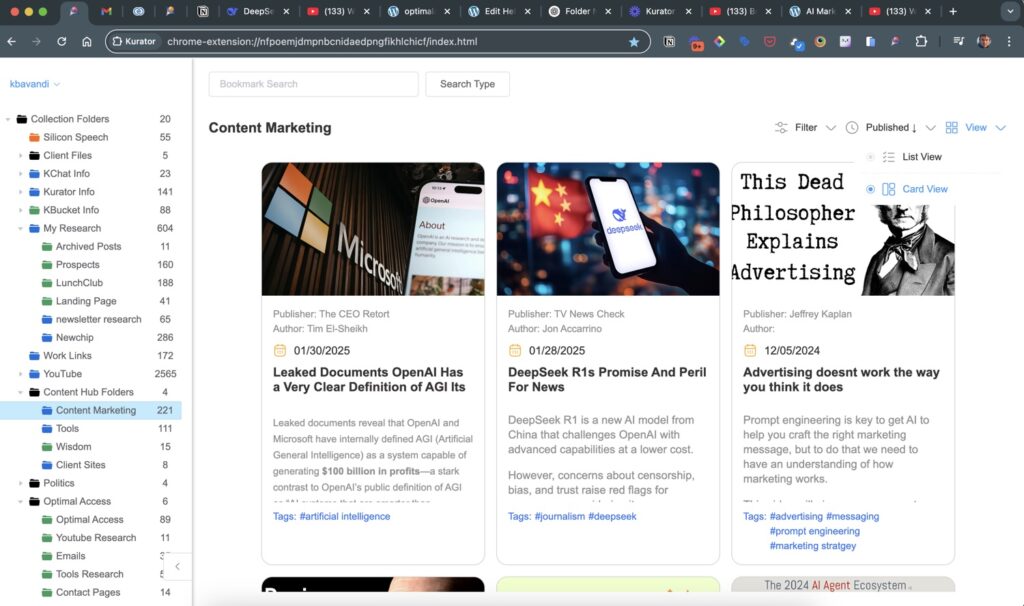
Card view shows your posts in a card layout with all their details. You can filter posts by author, publisher, and content tags directly in the list view, and clear these filters using the menus at the top.
Card Images
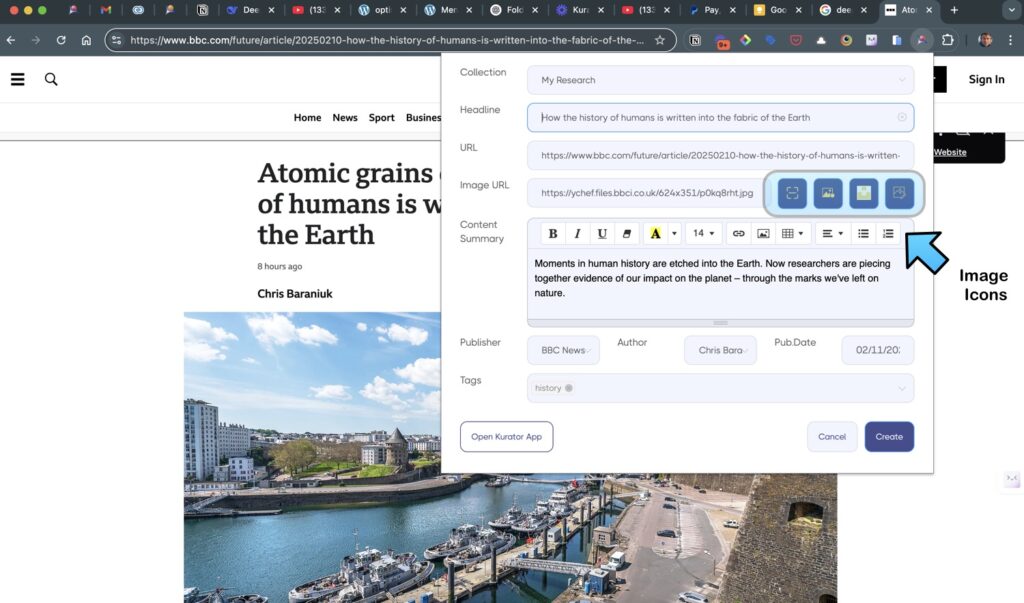
When you save your posts, you can scan for images and select the image you want to store with the card.
You can only scan for images while on the webpage. The scan image function will not work inside of Kurator.
In addition to scanned images, you can upload images from your desktop or search Unsplash's free image directory. Since some scanned images may be copyright protected, you should verify image rights before publishing your collections.
Additionally, some links, such as links to PDF files or web documents, may not have default images. In this case, the image upload feature can help you create a visual cue for your content.
When uploading to a WordPress website, ensure that your image files have no spaces in their names. For example, "Use This Image.jpg" is not allowed, but "UseThisImage.jpg" will work.
Alternatively, we have an unsplash media directory integration, where you can search for and add free images to your posts.
Cut/Paste
Kurator makes it really easy to move links and folders per drag and drop.
You can also select posts you want to cut or copy and paste into another folder.
If you want to use the copy function, we recommend using the list view, it is easier to move a collection of links.
When copying and moving links in card view simply select the cards you want to move by checking the box on the top left of each post and then copy and paste them.
Filter Function
Each collection or folder in Kurator has its own unique filters and you can easily search these filters to locate your posts in context.
The List-View is organized by column, and you can sort and filter information per column.
The Card-View lets you click and filter information by clicking on the filters in the card. You can reset these filters from the Filter-Menu, and sort them from the sort menu.
By default, the program views are set to card view, but Kurator remembers your settings per folder and will display the posts based on your previous settings.
Global Search Function
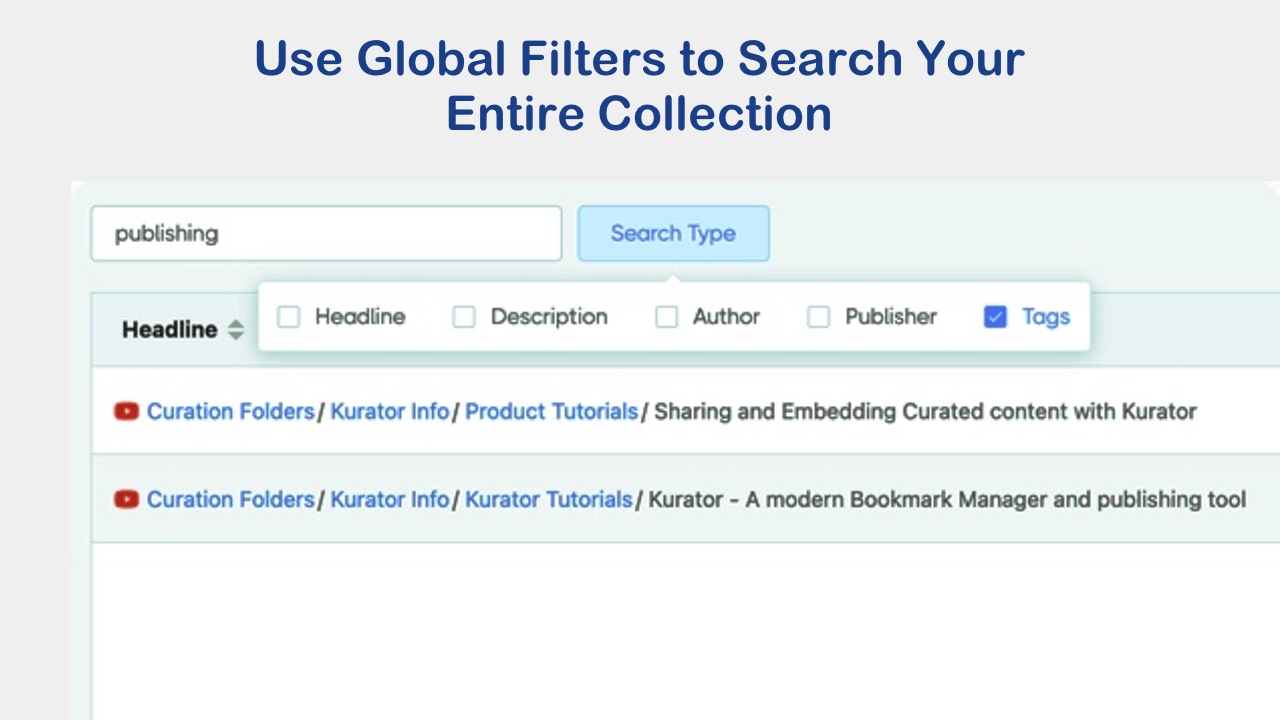
The Global Search function, located at the top of your screen, allows you to search your entire collection by your preferred fields.
You can choose to search by Headline, Content Summary, Publisher, Author, and Content tags.
Your search results will appear in a list, and each link will show you the path to the link.
By selecting the link, you can view your comments, or click on the folder link to view the search result in the context of your folder.
Collection Group Folders
These folders are meant to help you organize your projects into groups.
The view for these folders is a list of folders under them.
If you nest folders under a Collection Folder, you have no visibility as to how many folders are stacked under that folder.
When you use Collection Group Folders to organize your Collection Folders, you have visibility on the number of stacked folders.
You can share your Collection Folders with other users, by adding their email to the folder.
When you share a folder with others, the color of the folder will change to blue and your collaborator will receive an email notifying them of the invitation.
If the collaborator is a registered user of Kurator, the folder will automatically appear in their app as an orange folder.
If the collaborator does not have Kurator installed, they are asked to install Kurator using the same email they received the invitation from, and upon installing, the shared folder will appear in their app.
Each user will not have two types of links.
- Black links are contributed by you
- Blue links are contributed by others
Participants can only edit and modify their own links.
The owner of the folder can edit and modify all links.
Import-Export function
You can import and export your Collection Folders from the context menu.
The idea is to let you easily archive and share your folders with other Kurators.
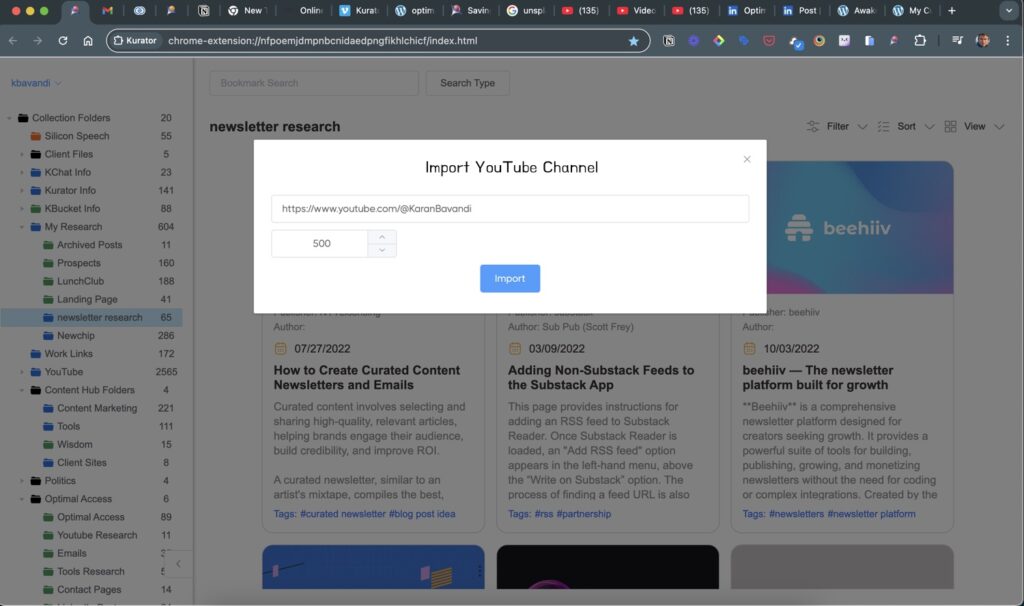
YouTube Channel Import
You can import an entire YouTube channel by using its URL. When importing, you can specify how many videos to include and choose a name for the channel. Note that this is a one-time import—it won't automatically update when new videos are added to the YouTube channel.