Optimal Access · Docs
OpenAI Integration
Kurator’s OpenAI integration lets you supercharge your content curation by connecting your app with OpenAI’s powerful language models. With this feature, you can create custom prompts and automatically generate summaries, tags, or any other AI-enhanced content while saving links to Kurator.
💡 Note: This feature is available to paid subscribers only.
openAI setup
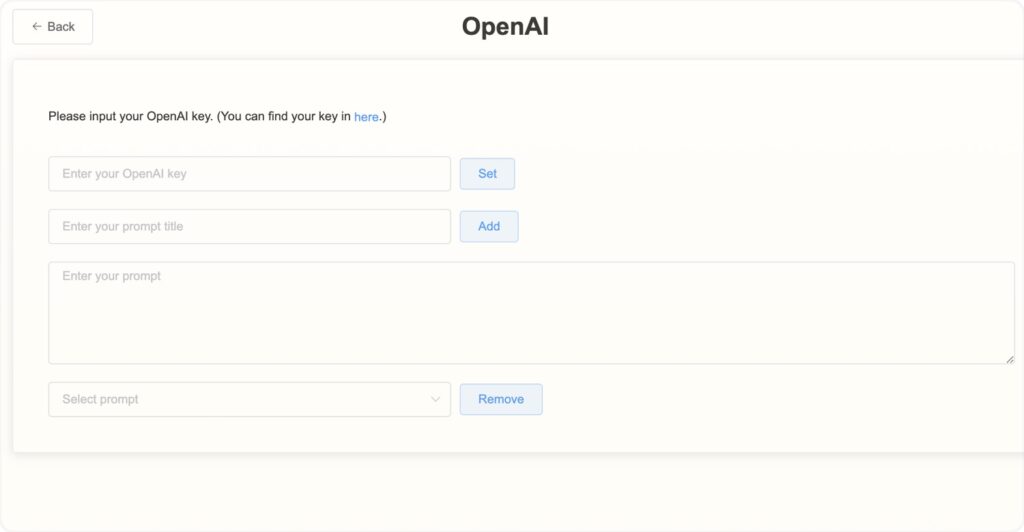
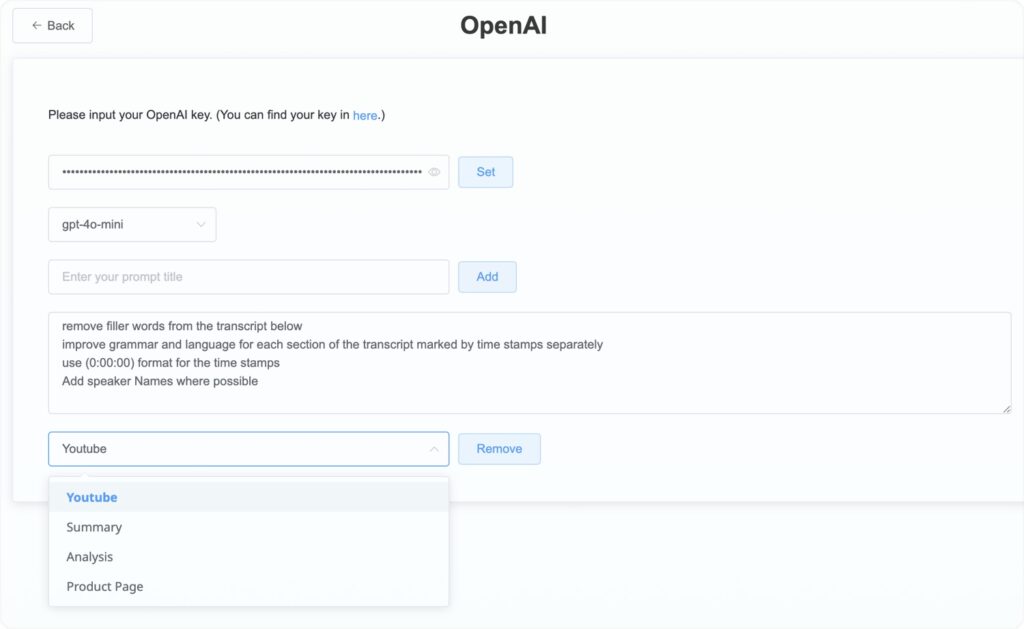
To activate your openAI connection, access the openAI screen by clicking on your username on the top left hand corner of your Kurator app, then select openAI.
openAI API key
To activate this feature, you require an API key.
This link on the top of your screen will lead you to the openAI dashboard, where you can create and account, and generate an API key.
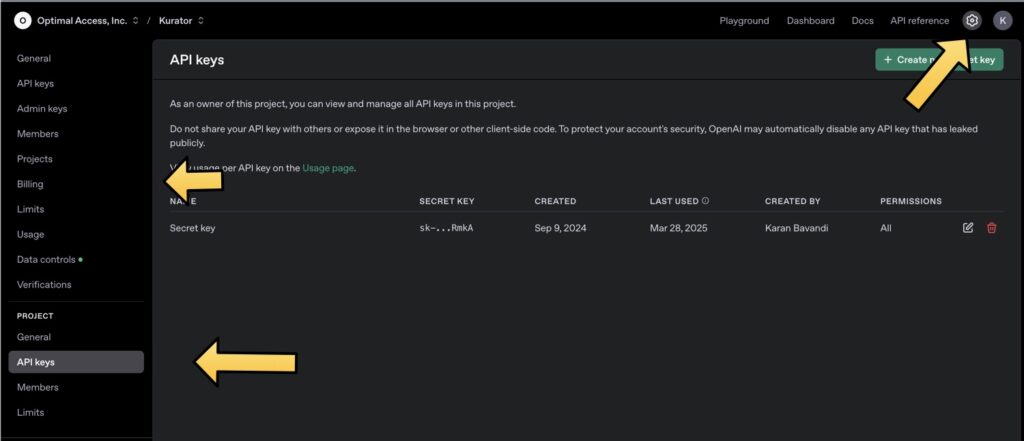
Once you log in, access the openAI dashboard from here (same link is in your Kurator dashboard).
Next click on the "Settings Wheel" on the top right of your screen.
Next access the API key from the left menu and generate a new key. You must save this key locally, in case you need it again. Once you create this key you are not able to access the same key from this menu.
You will also need to setup your billing and add some money to your account.
You are in charge, and now you are ready to get started.
Choose LLM
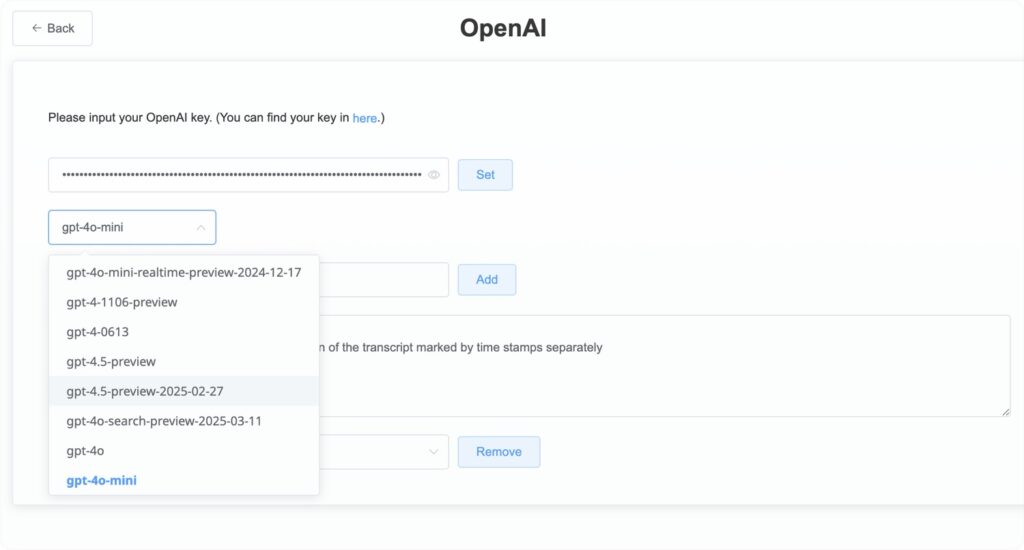
Next, you need to choose an LLM from the dropdown list.
Your choice of LLM should be based on the types of content and activities you plan to use OpenAI for.
For most applications, the GPT-4-mini will suffice. It is a low-cost and powerful solution for creating summaries, transcripts, and general research.
Add Prompts
Now you can add one or more prompts to your Kurator app.
To create a prompt, give it a name and add your prompt text, just as you would in ChatGPT.
These prompts will then be available from the Kurator popup menu.
Once you create these prompts you can access them from the drop down menu at the bottom of the screen and modify or remove them.
Using Prompts
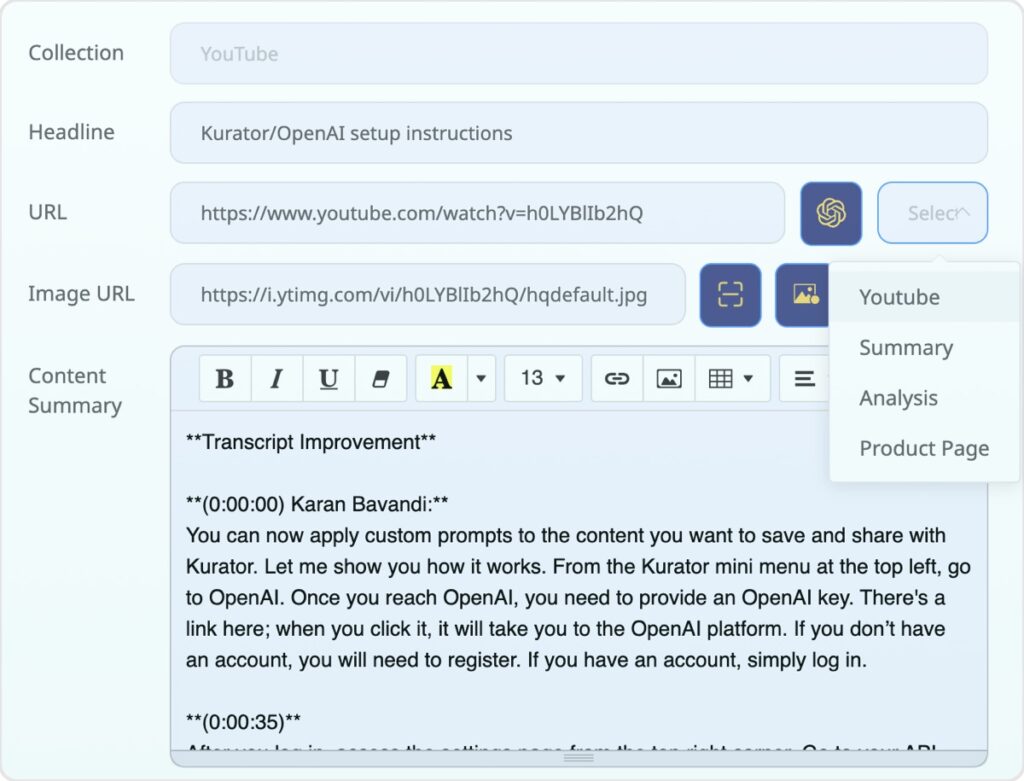
Once you have created a list of prompts, you can use them on any posts you want to save.
To use your custom prompts, select them from the dropdown menu in your Kurator popup, then click the OpenAI icon next to it.
Kurator will analyze the content on the page (YouTube videos, news posts, social media posts, web pages, etc.) and save the results in your description section.