Optimal Access · Docs
Kurator Prompt Setup
Kurator’s OpenAI integration lets you supercharge your content curation by connecting your app with OpenAI’s powerful language models. With this feature, you can create custom prompts and automatically generate summaries, tags, or any other AI-enhanced content while saving links to Kurator.
💡 Note: This feature is available to paid subscribers only.
API setup
Kurator supports both OpenAI and Google Gemini. You can connect either provider or both.
To get started:
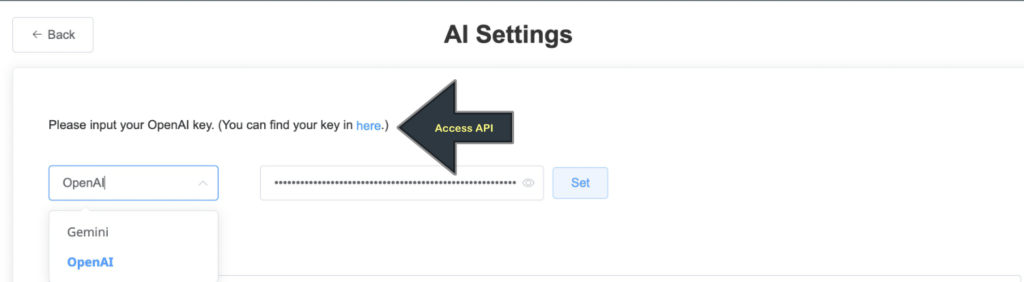
- Select your preferred AI provider from the LLM drop-down menu.
- Click the "Here" link at the top to access your OpenAI or Gemini account.
- If you don't have an account, you can create one.
- Generate or copy your API key and paste it into the designated field in Kurator.
Once your API key is configured, you can start running your custom prompts on any web page.
Note: API usage may incur charges from OpenAI or Google, depending on your provider and usage.
Choose LLM
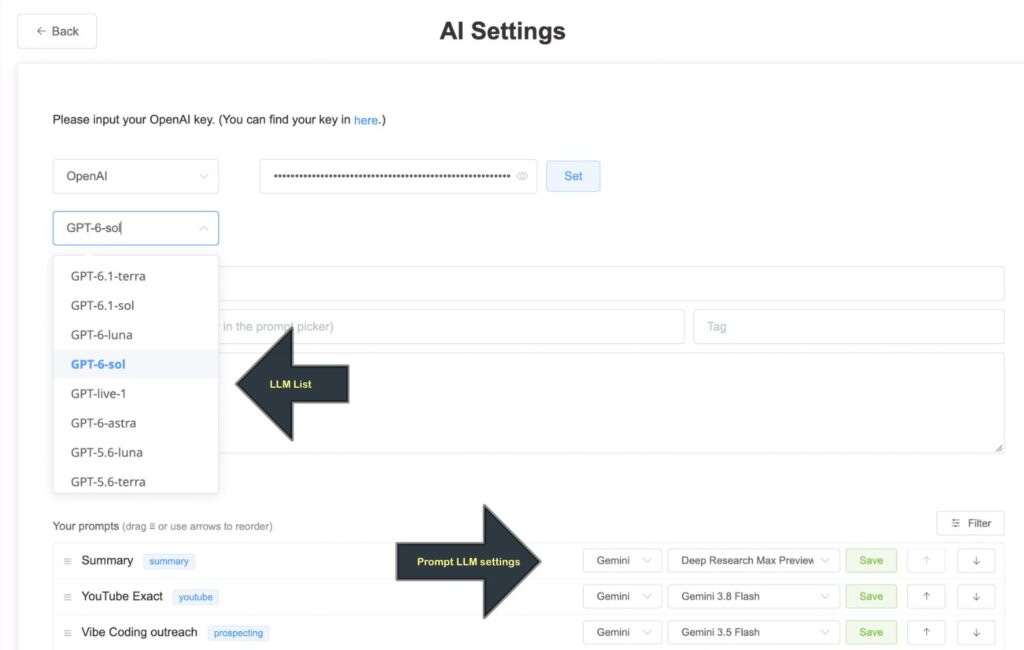
Once you've activated your API key, you can select your preferred LLM from the drop-down menu.
You can also assign a specific LLM to each custom prompt, giving you the flexibility to use different AI models for different tasks.
Add Prompts
Create and Manage Your Custom Prompts
You're now ready to create and customize your prompts in Kurator.
1. Create a New Prompt
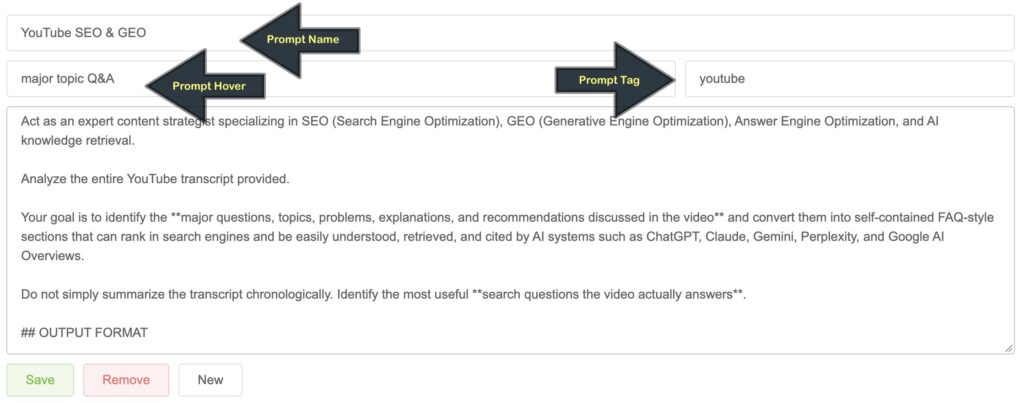
Click New to clear the fields and start creating a prompt.
Give your prompt a name, description, and category. These details help you organize your prompts as your collection grows. Category tags make it easy to filter and find the right prompt for any task.
2. Write Your Prompt
Enter instructions describing what you want the AI to accomplish.
Tip: You can use ChatGPT, Gemini, or another LLM to help you write your prompt. Simply explain what you're trying to achieve and ask the AI to generate a prompt for you.
Copy the generated prompt into Kurator and test it on different web pages to evaluate the results.
3. Edit an Existing Prompt
To modify a prompt, select it from the list below. Make your changes, then click Save to update it.
4. Test, Refine, and Improve
Try your prompts on different web pages and review the results. Adjust your instructions as needed to improve accuracy, consistency, and relevance.
Kurator makes it easy to create, test, and refine reusable prompts until they deliver the results you need. You can continue improving them as your requirements evolve.
Using Prompts
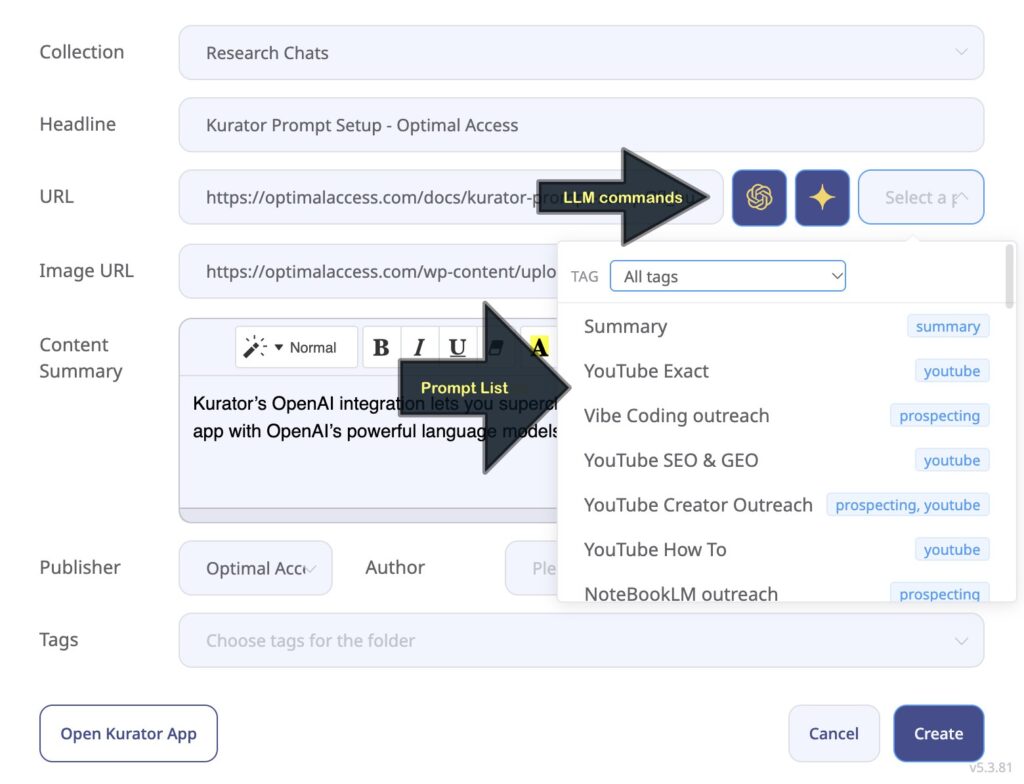
Once you've created your prompts, you can run them directly from the Kurator pop-up on any web page.
1. Open the Kurator Pop-up
Click the Kurator icon next to your browser's address bar to open the pop-up and access your saved prompts.
2. Select Your Prompt
Choose a prompt from your list. If you have multiple prompts, use your category tags to filter the list and quickly find the one you need.
3. Execute Your Prompt
Click the OpenAI or Gemini icon to run the selected prompt on the current web page.
4. Review and Edit the Results
The AI-generated results will automatically appear in the Description field of the Kurator pop-up.
You can review the output, edit the content, and add your own comments or insights before saving.
5. Save Your Content
Once you're satisfied with the results, save the page along with your AI-generated description.
With Kurator, you can analyze, structure, and organize web content at the moment of capture, turning information into reusable knowledge tailored to your needs.