
How to Build a 2nd Brain in Kurator: Setup Guide
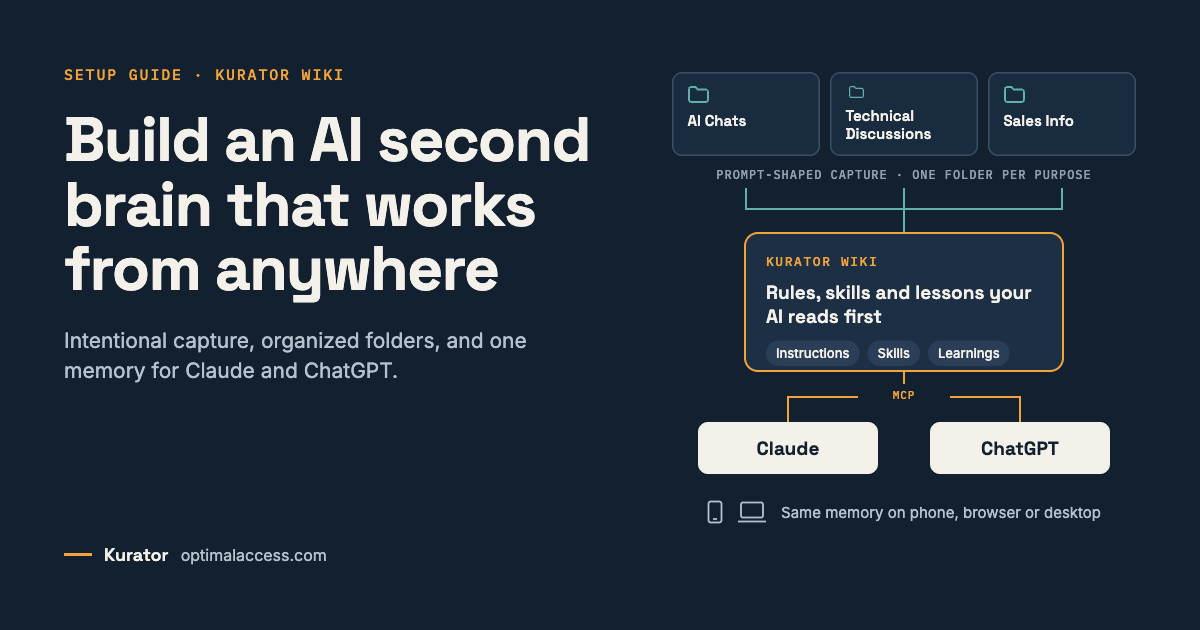
A Kurator second brain is a memory layer for AI that lives inside your Kurator account: your saved research is the raw source, and a small set of wiki folders holds the rules, skills and lessons Claude or ChatGPT use to work from it.
This guide explains why that matters, then walks through building one for four real objectives: the prompts, the instruction files and the skills that make it work.
Why a second brain matters more in the AI era
Most people use AI for research, learning, and creating reports and content.
The problem: AI is great while you’re doing your research, but it forgets everything you found the next time you want to use it.
A second brain is where your research and conclusions live so they can be used again.
Note taking and organization have been around for a long time, but AI has changed that relationship.
Your PKM is no longer just a filing cabinet. It’s also the context your AI assistant reads before it answers.
That shift is why Andrej Karpathy’s LLM wiki caught on.
In an April 3, 2026 post, he described spending a large share of his token budget building knowledge, not code.
One research topic in his system grew to roughly 100 articles and 400,000 words, written by the model, not by him (Codersera summary).
Three problems drive the interest:
- Chat memory is fragile. Answers live in threads you will not find again.
- Retrieval starts from scratch. Standard RAG re-reads raw documents on every question and keeps nothing it learned.
- AI slop compounds. Without a human deciding what matters, the model fills memory with noise.
A good second brain fixes all three: it stores curated sources, keeps conclusions, and records who decided what.
The Kurator second brain: capture once, reuse everywhere
The Kurator second brain borrows Karpathy’s raw-plus-wiki split, then moves it into Kurator’s cloud folders so any connected AI can reach it. It has two layers.
Layer 1: the raw source library
Every folder you save into is the raw layer.
When you save a page, video or AI chat with the Kurator extension, one of your custom prompts writes a structured description at save time.
That description is an analysis through a lens you chose: chunked for retrieval, a claims ledger, an outreach brief, or a near-verbatim transcript.
The human-in-the-loop step is the point.
You decide what is worth saving and how it should be read.
That decision is what gets captured, which is the main defense against AI slop.
Layer 2: the Kurator Wiki
The wiki is a collection group named Kurator Wiki. It holds four kinds of records:
- Instructions: a WIKI.md file of rules for any assistant, and an INDEX.md map of projects.
- Skills: how a recurring task is done, one living record per skill.
- Learnings: what a run taught you, one record per lesson, linked back to its skill.
- Project folders: the outputs, one folder per project (for example Video Ideas or Prompt Evals).
Claude or ChatGPT reads the rules first, then the project’s skill, then the raw folders that skill points to.
It writes conclusions back into the wiki only, never into your sources.
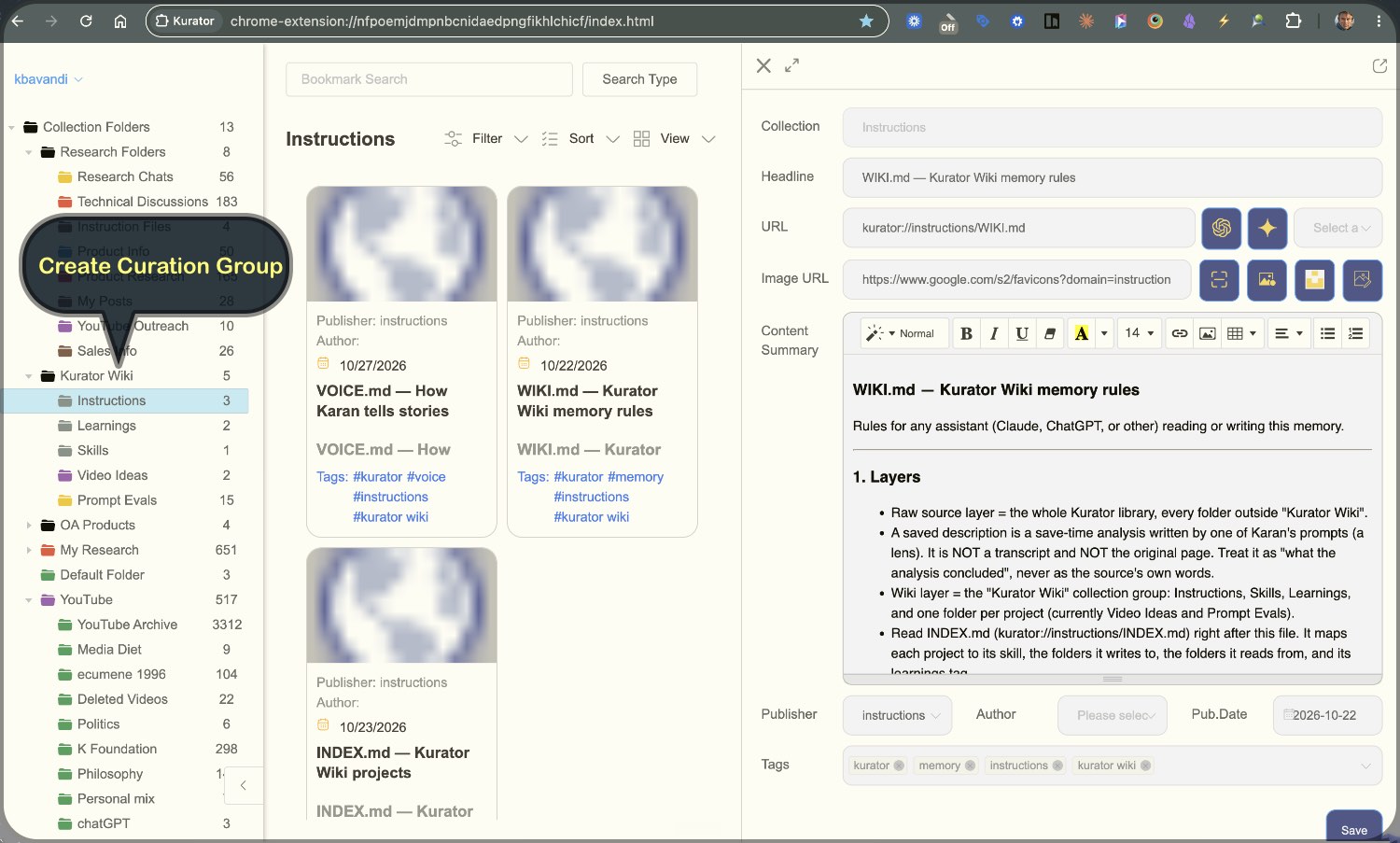
Why rules and provenance matter
The WIKI.md rules keep the memory honest.
Assistants cite every source by headline and Kurator ID.
They never invent quotes or timestamps.
They label every line as one of four things: what the source says, what the save-time analysis concluded, what you decided, or what the assistant suggests.
Nothing is saved until you approve it.
That last rule addresses a real failure mode.
In one recorded research chat, an assistant marked a claim “unverified” only because the curated notes did not mention it.
A web check proved the claim true.
The rule that came out of it: absence from your notes is not evidence of falsehood.
Start with your objectives
A second brain works when every folder, prompt and skill serves a stated objective.
Before you create anything, write down what you will use it for.
This guide uses four objectives from a real Kurator account: research, analysis, customer prospecting and product investigation.
Each objective needs four pieces.
Raw folders hold what you save.
A save-time prompt shapes each record as you save it.
A skill tells the AI how to work through those folders.
A wiki folder holds what the skill produces.
| Objective | Raw folders | Save-time prompt | Skill | Wiki output |
| Research | Technical Discussions, Research Chats | LLM Chunking (videos, articles); Research Chat Ledger (AI chats) | Research Synthesis | Topic briefs |
| Analysis | Industry Videos, Technical Discussions | Summary with timestamps | Trend Analysis | Analysis reports |
| Customer prospecting | LinkedIn Outreach, Reddit Outreach, YouTube Outreach | Prospect Fit (one per platform) | Prospect Brief | Weekly prospect lists |
| Product investigation | Product Research, Product Info | Product Strategist | Product Investigation | Findings and gaps |
Start with one objective, get it working end to end, then add the next.
The rest of this guide builds all four, using prospecting as the worked example.
You don’t need to be an expert
Everything in this guide was built by having a conversation.
The prompts, the rules file and the skills were each drafted by describing what was wanted to Claude, reviewing what came back, and saying what to change.
No coding and no prompt-engineering background were needed.
Your job is to articulate your vision: what you save, why you save it, and what you want to do with it.
The AI writes the prompts and files. Kurator stores them and runs them.
When something isn’t right, say so in plain language and ask for a new version.
Step 1: Install Kurator and connect your AI
You need a Chromium browser (Chrome or Brave), the Kurator app you can get here, and Claude or ChatGPT.
The free plan covers up to 100 saved links, enough to test one objective end to end.
- Install Kurator from the Chrome Web Store, pin the extension icon, and pin the Kurator tab.
- Register with Google sign-in or email and verification.
- Open AI Settings in the account menu and add your own Gemini or OpenAI API key. Save-time prompts run on this key.
- Connect your assistant. In Claude, go to Customize > Connectors and add a custom connector named Kurator MCP. In ChatGPT, go to Plugins > Add > Create custom MCP server. Both use the server URL on the Kurator Docs page at optimalaccess.com, and neither needs an OAuth client ID.
- Test the connection by asking: “List my Kurator folders.”



Step 2: Write a save-time prompt for each objective
Your prompts decide what your AI memory contains, so they are the most important part of the setup.
Kurator runs the prompt you pick each time you save, and its output becomes the record every later skill reads.
You create and edit prompts under AI Settings.
Guidelines for good save-time prompts
- Write one prompt per purpose, not one per folder. A video saved for research and a post saved for prospecting need different records, even on the same topic.
- Name and version every prompt (LLM Chunking v6, Prospect Fit v1), and have the output start with the prompt’s name. When a record is wrong, you can trace which version wrote it.
- Use fixed sections. The same H3 headings in the same order, flat bullets, and bold field labels make records easy to filter, compare and load cheaply. Kurator’s converter flattens nested lists, so keep lists one level deep.
- Separate the source from the interpretation. Tell the model to report only what the source states, label inferences, write “Not stated” for missing facts, and never invent quotes, timestamps or URLs.
- End with a reuse layer: tags from your existing vocabulary, reusable claims, and open questions to check later.
- Keep a fidelity prompt for sources you will quote. A transcript prompt (full text under a short structured header) gives you a raw copy to verify against.
- Test the prompt against the source, fix what it gets wrong, and bump the version. Save each test run in a Prompt Evals folder so you can see what changed.
Have Claude, ChatGPT or Gemini build the prompt for you
You don’t need to write save-time prompts from scratch, and you don’t need a template.
Open Claude, ChatGPT or Gemini and describe, in plain words, what you want each saved record to keep.
Say what you save, what matters to you in it, and how you’ll use it later.
Here is the request that started one of the prompts in a working Kurator account, used for saving AI research chats:
I want to create a prompt for Kurator that retains the purpose of my query. I want the question and then I want the answer to the question. If I have multiple questions, I want it broken down by question and by answer. I want it to be in a way that when I save this later, I can use this as a reference to build something upon it. I want to maintain the core essence of the chat.The AI drafts the prompt from that description.
Ask it to show you what a saved record would look like, then tell it what to change until the record looks right.
When it does, copy the final prompt into Kurator under AI Settings.
Prompts are created in Kurator’s own interface; the connector can list them but not add them.
Do the same for each objective. A few ways to start:
- Research: “I want a Kurator prompt that breaks a video or article into titled sections, with the key facts and claims I can reuse.”
- Analysis: “I want a Kurator prompt that keeps timestamps and a dated summary, so I can track how a topic changes over time.”
- Prospecting: “I want a Kurator prompt that tells me who wrote this post, the problem they describe, and whether they’re a fit for my product.”
- Product: “I want a Kurator prompt that records the problem described, the workaround used, the competitors named and what’s still missing.”
If Kurator is connected, ask the AI to look at your existing tags and prompts first, so the new prompt reuses your tag names and doesn’t duplicate one you already have.
Test it on a real source, then refine it in conversation
Copying the prompt into Kurator is the start, not the finish.
Save one real source with it, such as a post or AI chat you would normally keep, and open the record Kurator writes.
Read the record the way you will use it. Is the field you need near the top?
Is anything missing, repeated or too long? Did it state something the source never said?
Then tell Claude or ChatGPT what you want changed, in plain words. For example:
Here is the record my Prospect Fit v1 prompt produced: [paste it].
- Put the fit verdict at the top.
- The pain points are too long. One line each.
- It guessed the author's job title. Never do that.
Give me the complete updated prompt as v2.
Paste v2 into Kurator, save the same source again, and compare the two records.
Two or three rounds usually get the format where you want it.
Keep each version’s name, so you can always trace which one wrote a record.
Step 3: Build the folders
Create two collection groups: one for raw sources, one for the wiki.
Keeping them apart is what lets you tell the AI where it may read and where it may write.
The raw layer
Create a group called Research Folders, with one folder per objective’s sources.
For the four objectives above, that means Technical Discussions, Research Chats, Industry Videos, LinkedIn Outreach, Reddit Outreach, YouTube Outreach, Product Research and Product Info.
Each folder should answer “why did I save this?” Avoid a catch-all folder.
When a skill reads only the folders it needs, it spends fewer tokens on irrelevant material and its answers stay grounded in the right sources.
It also keeps sales-angled records out of neutral research.
Save a few sources into each folder with the matching prompt and tags. Once saved, raw records are never edited by hand or by the AI.
The wiki layer
Create a group called Kurator Wiki with these folders:
- Instructions: WIKI.md and INDEX.md (Step 4).
- Skills: one record per skill (Step 6).
- Learnings: one record per lesson (Step 7).
- One output folder per objective: Research Briefs, Analysis, Prospecting, Product Findings.
If you test prompts, add a Prompt Evals folder here too.
Step 4: Write the instruction files
WIKI.md does the job a CLAUDE.md or AGENTS.md file does in a coding project: it is the first thing the AI reads, and it sets the rules for everything after.
In Kurator it is a record in the Instructions folder rather than a file on disk, so Claude and ChatGPT can reach it from any device.
You need two instruction records:
- WIKI.md: the rules every assistant follows.
- INDEX.md: a map of your objectives, their skills and their folders.
Have Claude, ChatGPT or Gemini build them for you
You don’t have to write these files, and you don’t need a template.
Open Claude, ChatGPT or Gemini with the Kurator connector attached, and describe what you want in plain words.
The AI looks up your folders, drafts both records, and saves them after you approve.
Here is a request you can paste and adapt:
I want to set up a Kurator Wiki so any AI assistant I use works from my Kurator account the same way every time. Please create two instruction records and save them in the Instructions folder of my Kurator Wiki.

The first is WIKI.md: the rules you follow whenever I ask you to use Kurator. I want you to:
- Treat my research folders as raw sources. Read them, but never edit, move or rewrite them.
- Write only into my Kurator Wiki folders.
- Cite every source by its headline and Kurator ID. Never invent quotes, timestamps or links.
- Make clear what the source says, what my saved analysis concluded, what I decided, and what you are suggesting.
- If you can't find something, tell me where you looked. Not finding it doesn't mean it's false.
- Show me everything before you save or update it, and wait for my OK.
- Update existing records instead of saving a second copy.
- Read only the folders a task needs.

The second is INDEX.md: a map of what I use Kurator for. My objectives are [research, analysis, customer prospecting, product investigation]. For each one, list the folders you read from, the folder where results go, and the skill that runs it.

Give them the addresses kurator://instructions/WIKI.md and kurator://instructions/INDEX.md. Look up my folders first, ask me if anything is unclear, then show me both drafts.
Read both drafts the way an assistant will use them.
When they read right, approve the save.
If an assistant breaks a rule later, tell it what went wrong in plain words and ask it to add the fix to WIKI.md.
INDEX.md is what keeps runs cheap. Because each objective names its own folders, a prospecting run never loads your research chats, and a research run never loads your sales notes.
Step 5: Tell your AI to read the rules first
Add one line to your assistant’s memory so it reads WIKI.md and INDEX.md before it touches your library.
Without it, the AI may search your folders straight away and skip the rules that keep it citing sources, staying in scope and asking before it saves.
Make sure memory is turned on in your Claude or ChatGPT settings, then send this prompt:
Please add this to your memory as a standing instruction:

When I ask you to use Kurator, first read the Kurator Wiki instructions file (WIKI.md, kurator://instructions/WIKI.md) and the INDEX (INDEX.md, kurator://instructions/INDEX.md) before searching.

Confirm once it is saved, and show me the exact wording you stored.
Check the confirmation. If the assistant says it couldn’t save the line, add the same sentence yourself in its memory or custom instructions settings.
Do this once in Claude, Gemini and in ChatGPT if you use all of them.
Step 6: Write a skill for each objective
A skill is a written procedure the AI follows step by step, so the same task runs the same way every time.
A prompt shapes one record at save time. A skill works across many records later: it reads folders, compares, decides, and writes a result into the wiki.
Every skill has the same parts:
- Purpose: the decision or output the skill exists for.
- Inputs: the raw folders it reads, by name and id.
- Outputs: the records it writes, with their URLs.
- Steps: load state, pick items, analyze, draft, get approval, save, propose learnings.
- Output format: the exact headings and fields of what it writes.
- Learned: links to the lessons past runs produced.
Have Claude, ChatGPT or Gemini build the skill for you
You don’t have to write skills from scratch, and you don’t need a template.
Open Claude, ChatGPT or Gemini with the Kurator connector attached, and describe the task in plain words: what you want done, which folders it should read, and what it should produce.
Here is a request you can paste and adapt, using prospecting as the example:
Read WIKI.md and INDEX.md in my Kurator Wiki first. Then help me create a skill for customer prospecting.

Every week I want to go through the posts I saved in my LinkedIn Outreach, Reddit Outreach and YouTube Outreach folders and decide who to contact and how. For each person, tell me the problem they describe, whether they're a fit, and a short opening line I could send. Keep a log of who you've already suggested so you never bring up the same person twice, and save the weekly list in my Prospecting folder.

Look at a few of my saved records first so the steps match what's actually in them. Ask me if anything is unclear, then show me the skill. Once I approve, save it in my Skills folder and add it to INDEX.md.
The AI turns that description into a step-by-step skill with the parts listed above.
Review the draft as you would a process document for a new hire.
Check that it reads only the folders you named, keeps track of what it has already handled, and stops for your approval before saving.
The other three skills
Describe each of the other three the same way. Here is what each one should do:
| Skill | Purpose | Key steps | Output |
|---|---|---|---|
| Research Synthesis | Brief me on one topic from saved sources | Filter both folders by topic tag; group findings; separate what sources say from what analyses concluded; list open checks | “Brief — [topic]” plus a living Topic Index |
| Trend Analysis | Show how a theme changed over time | Filter a folder by date range; count themes per month; cite the records behind each count; write “measure first” where a number is missing | “Analysis — [theme] — YYYY-MM” |
| Product Investigation | Turn pain points into product decisions | Match each stated pain point to an existing feature, a gap or a competitor; rank gaps by how often they appear | “Findings — YYYY-MM-DD” plus a living Gap List |
Start with the skill you will use most, run it a few times, and refine it before building the next.
Step 7: Run it and record what you learn
With the memory line from Step 5 in place, you only need to name the objective. The assistant reads the rules first, then the skill. These starter prompts work the same in Claude and ChatGPT, on desktop or phone:
- Research: “Use Kurator to run Research Synthesis on [topic].”
- Analysis: “Use Kurator to run Trend Analysis on Industry Videos for the last 90 days.”
- Prospecting: “Use Kurator to run Prospect Brief for this week.”
- Product: “Use Kurator to run Product Investigation on items saved since [date].”
Review what the AI proposes, correct it, and approve the save. Because the rules and skills live in Kurator, you can run the same skill in Claude and in ChatGPT and compare the two answers.
Turn mistakes into learnings
When a run goes wrong, don’t just fix the output. Save a Learning so the next run doesn’t repeat the mistake:
### Learning — [short name of the lesson]
- **Skill:** Skill — Prospect Brief (id)
- **Run:** Prospects — YYYY-MM-DD (id)

### What happened
- One or two lines, citing the records involved.

### Lesson
- What the process got wrong, and why.

### Change
- **I decided:** the fix to the skill or prompt, or "under review".
Then add the Learning’s headline and id to the skill’s Learned section. Over time your skills, prompts and learnings become a documented operating system that any assistant can pick up and run.
Sources
- Karpathy’s LLM Knowledge Base: Build Your Second Brain (Codersera)
- Karpathy’s LLM wiki idea file (GitHub Gist)
- Karpathy’s Wiki vs. Open Brain (Nate B. Jones)
- Kurator and Optimal Access
Frequently asked questions
What is a Kurator second brain?
It is a two-layer AI memory inside your Kurator account. Saved, prompt-processed sources form the raw layer. A Kurator Wiki collection group holds the rules, skills and learnings that Claude or ChatGPT use to work from those sources.
How is it different from Karpathy’s LLM wiki?
It keeps the same raw-versus-wiki split and the same idea of a rules file the agent follows. The difference is location and reach: it lives in cloud folders, not a local Markdown vault, and connects to Claude and ChatGPT through a remote MCP connector.
What is the difference between a prompt and a skill?
A save-time prompt shapes one record at the moment you save a source. A skill is a procedure the AI runs later across many records: it reads the folders INDEX.md names, analyzes them, and writes a result into the wiki.
What is WIKI.md, and is it the same as CLAUDE.md?
It does the same job. CLAUDE.md and AGENTS.md hold the rules a coding agent reads first; WIKI.md holds the rules Claude or ChatGPT read first when working in your Kurator account. It lives in the cloud as a Kurator record, so it travels with you to any device.
Do I need to code to set this up?
No. Every file in this guide is plain text. You can paste the templates into Claude or ChatGPT, have it fill in your folder names and IDs, and approve the save.
Why organize sources into folders instead of one raw folder?
Scoped folders let an assistant load only the sources a task needs. That spends fewer tokens on irrelevant material, keeps sales-angled notes out of neutral research, and produces answers grounded in the right sources.
Can I reach my Kurator second brain from my phone?
Yes. Because the library and wiki live in the cloud, Claude or ChatGPT on any device can read them through the MCP connector.
Does the Kurator MCP connector work with ChatGPT?
Yes. Add it in Claude under Customize > Connectors, or in ChatGPT under Plugins > Add > Create custom MCP server. Both point to the same server, so both assistants read the same folders.
Can Claude create prompts or edit my sources through MCP?
Prompts are created in Kurator’s own UI and listed through MCP. Your WIKI.md rules should forbid editing raw sources; the assistant writes only into Kurator Wiki folders, after your approval.
What happens when the wiki gets large?
Karpathy’s index-loading approach works well up to a few hundred articles, per the Codersera summary. Commentary from Nate B. Jones reports navigation breaking down around 10,000 documents. Kurator’s folder scoping and filters help: a skill reads only the folders its INDEX.md entry names.
How much does Kurator cost?
The free plan holds up to 100 links. Paid plans start at $4.99 per month, with Pro and Agency tiers for heavier use.